Mastering Cyber Security: Protect Your Home Computer Today
Home computer cyber awareness is about spotting digital risks to your devices, accounts, and personal data — then using straightforward defenses to lower that risk. Studies show most home breaches still come from opportunistic phishing and unpatched systems, so learning a few practical steps can cut your exposure a lot. This guide walks you through clear actions you can take right away: email hygiene, password and multi-factor setup, router and Wi‑Fi hardening, malware and firewall basics, dependable backups, and update habits. TempoMailUSA offers a free, easy temporary email service that helps protect privacy and block spam — instant addresses with no signup, automatic message deletion, privacy-first policies, a fast mobile-friendly interface, and minimal data retention. Read on for step-by-step advice, recommended settings, and short checklists to make cyber awareness into real home security.
What Are the Most Effective Home Computer Security Tips?
Good home cybersecurity uses layers — email hygiene, unique passwords, network controls, malware defenses, and backups — so one mistake won’t lead to a complete compromise. This defense-in-depth approach shrinks the attack surface and limits damage if something goes wrong. The payoff: fewer successful phishing attempts, fewer infections, and faster recovery if an incident happens. Below is a short, actionable list you can use today.
Top actionable security tips for home computers:
- Use strong, unique passwords for every account and enable multi‑factor authentication when available.
- Harden your router and use WPA3 — or the strongest encryption your device supports — to protect Wi‑Fi.
- Run a reputable antivirus/anti‑malware tool with real‑time protection and automatic updates.
- Keep your operating system, apps, and device firmware patched on a regular schedule.
- Follow the 3‑2‑1 backup rule: multiple copies across local and offsite storage for reliable recovery.
- Use temporary, disposable email addresses for low‑risk signups to reduce spam and phishing exposure.
- Put IoT and guest devices on separate networks to limit lateral movement if something is compromised.
These steps work together to cut the most common home risks. The sections below unpack each area and show you how to put them into practice.
How Does Using Temporary Email Services Enhance Email Security and Privacy?
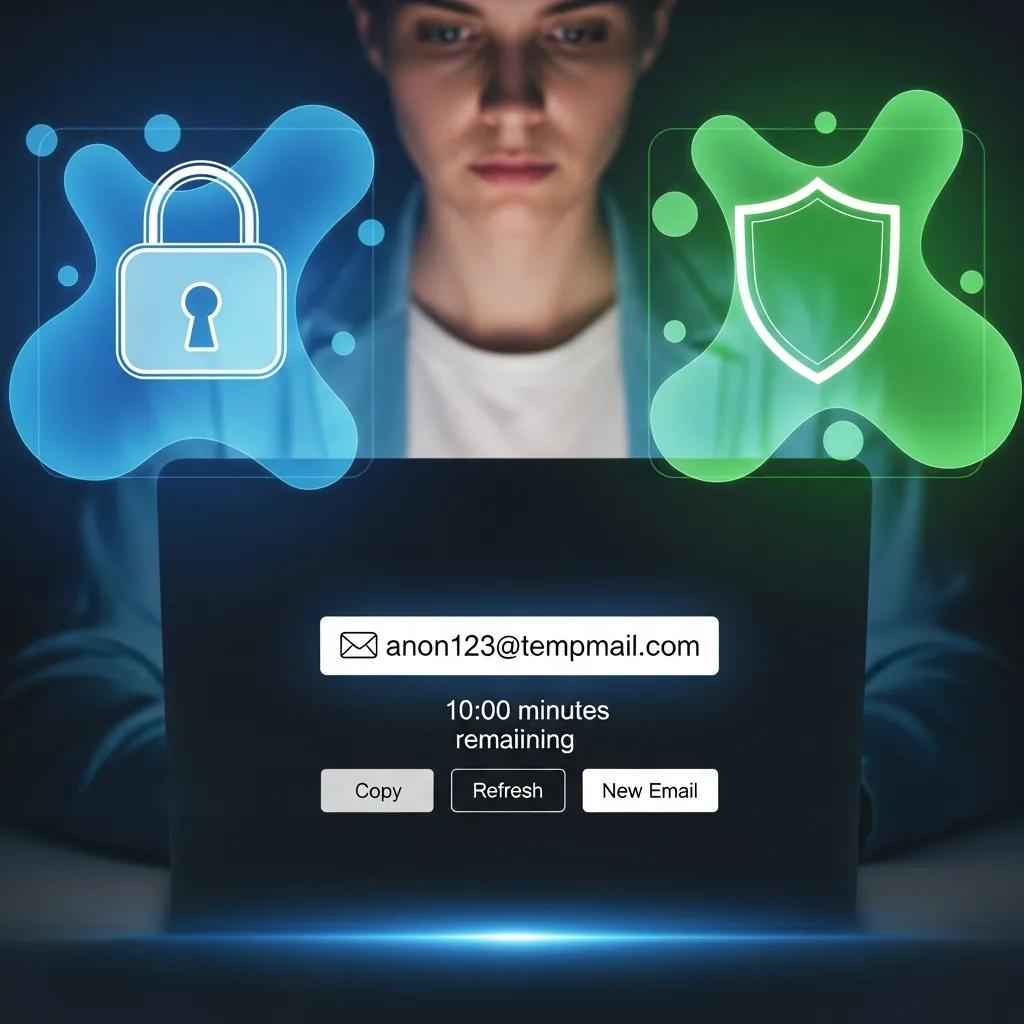
TempoMailUSA provides a free, easy temporary email tool designed to keep your main inbox cleaner and safer. You get instant addresses without signing up, messages that auto‑expire, and a privacy-first approach with no user profiling. Disposable addresses are useful for newsletters, trials, or one‑time downloads so your primary email avoids clutter and marketing lists. The security gains are practical: attackers have fewer stable addresses to target for phishing or credential stuffing, and short‑lived inboxes reduce the time malicious messages can reach you. Don’t use disposable emails for bank, healthcare, or other high‑value accounts where recovery and verification matter — use them for low‑risk signups and to cut nuisance mail.
What Are Best Practices to Prevent Spam and Phishing Attacks at Home?
Spotting and reporting phishing helps stop scams and improves provider filtering for everyone. Effective prevention pairs technical controls — spam filters, DKIM/SPF checks, and disposable addresses — with smart habits like verifying links and checking senders. Together they lower fraud, credential theft, and household exposure. Use the checklist below to recognize and handle suspicious email.
Phishing recognition and handling checklist:
- Verify the actual sender address and email headers instead of trusting the display name.
- Hover over links to see where they lead before clicking; avoid shortened or obfuscated URLs.
- Be wary of urgent requests for credentials, money, or personal details; confirm requests via other channels.
- Use your email provider’s reporting tools to flag phishing and keep spam filters on.
- If an attachment or link looks off, don’t open it — scan it with an offline on‑demand tool first.
If you suspect a message is malicious, disconnect the device from the network, change passwords from a known‑good device, and tell others in your household to avoid the same message. These steps pair with technical controls like temporary emails and strong filters to strengthen your overall defenses.
How Can Strong Password Management and Multi-Factor Authentication Protect Your Personal Data Online?
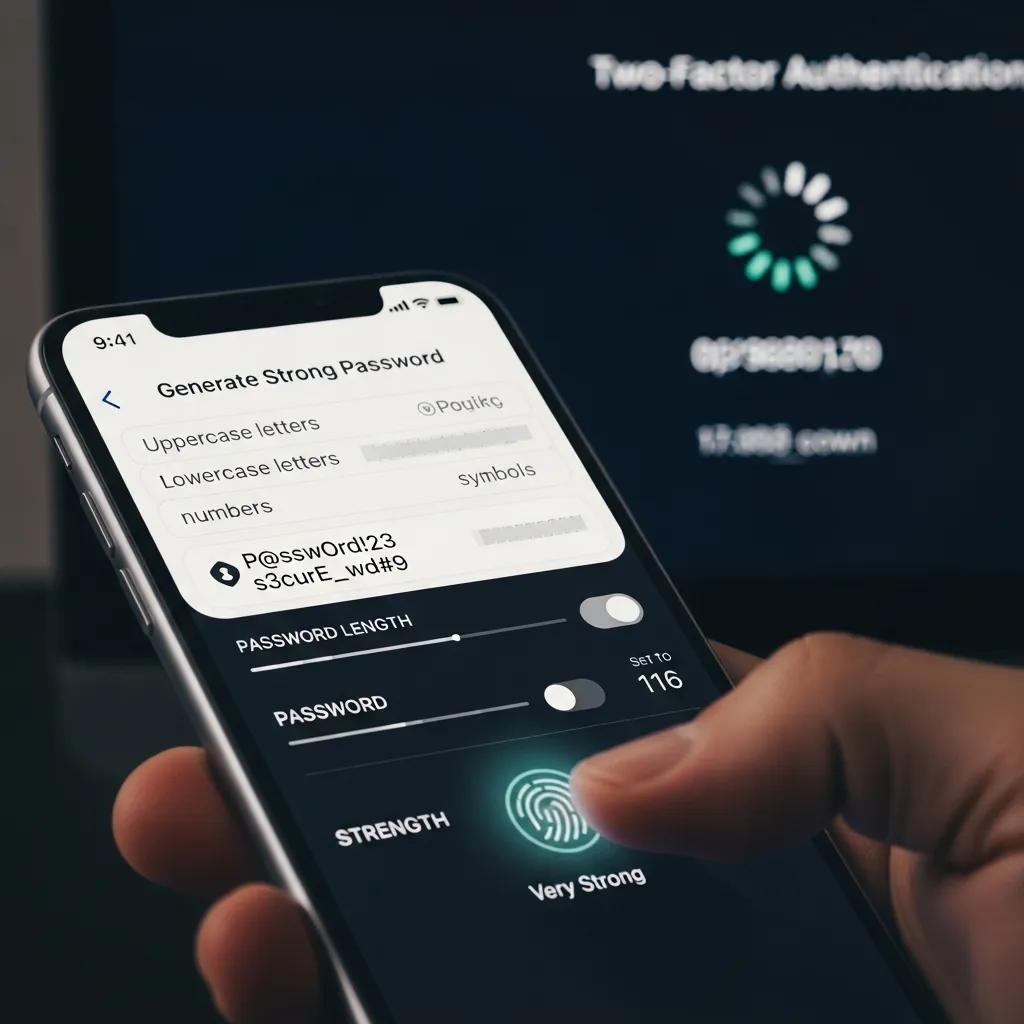
Strong password management and multi‑factor authentication (MFA) cut account takeover risk by removing easy entry points like reused passwords. Unique passwords stop credential stuffing, and MFA adds an independent factor attackers must breach separately. That combination makes unauthorized access far less likely, even after big data leaks. Below is practical guidance on choosing password managers and adopting MFA.
Password managers comparison for home users:
| Password Manager Type | Security Model | Cross-device Sync | Cost / Recommended User |
|---|---|---|---|
| Dedicated password manager | Encrypted vault with a zero‑knowledge model | Secure sync across devices | Best for families and heavy users |
| Built-in browser manager | Local encryption with optional cloud sync | Easy sync inside the browser ecosystem | Good for casual users in one browser |
| Device keychain (OS‑level) | OS‑protected vault tied to device credentials | Sync via the vendor cloud (platform dependent) | Best for users deep in one platform |
Use this table to match your threat model and convenience needs: pick a dedicated manager for cross‑platform households, or a built‑in/keychain option for lower setup effort.
What Are the Benefits of Creating Strong, Unique Passwords?
Strong, unique passwords limit damage from breaches because a leaked password on one site can’t be reused elsewhere. Uniqueness breaks credential‑reuse attacks, while length and complexity slow brute‑force attempts. A passphrase of several unrelated words is both easier to remember and stronger than a short, complex password. Let password managers create high‑entropy credentials so you don’t have to memorize them. After a confirmed breach, change affected passwords and enable alerts for unusual logins to shrink your exposure window.
How Do You Implement Two-Factor Authentication for Enhanced Cybersecurity?
Turning on two‑factor authentication adds a second check — something you have, know, or are — so stolen passwords alone won’t grant access. Common options are authenticator apps (TOTP), hardware security keys (FIDO2), and SMS codes; authenticator apps and hardware keys are stronger than SMS. Steps: find the account’s security settings, enable MFA, securely store recovery codes, and register primary and backup authenticators to avoid lockout. Use hardware keys for high‑value accounts when possible and prefer authenticator apps for wide compatibility. Review MFA devices periodically and keep recovery options current.
What Steps Should You Take to Secure Your Home Network and Wi-Fi?
Securing your home network keeps attackers from eavesdropping, accessing shared devices, or using your connection for further attacks. The approach combines stronger encryption, device segmentation, and firmware hygiene to reduce network‑level risks. The result is encrypted Wi‑Fi traffic, limited lateral movement from compromised IoT devices, and a smaller attack surface. Follow the ordered steps below to harden routers and Wi‑Fi for quick, measurable gains.
Steps to secure home Wi-Fi and router configuration:
- Change the router’s default admin password and device name right after setup.
- Enable WPA3; if unavailable, use WPA2‑AES with the strongest settings you can.
- Turn off WPS and UPnP unless required, and limit remote administration interfaces.
- Create a guest SSID for visitors and isolate IoT devices on a separate VLAN or network.
- Check for firmware updates regularly and replace routers that no longer receive security fixes.
These steps lower the chance of an easy network compromise and set you up for finer controls like WPA3 advantages and guest network planning, which the next section explains.
How Do WPA3 Encryption and Router Settings Improve Home Network Security?
WPA3 strengthens Wi‑Fi security by giving each device individualized encryption and a more robust handshake, which makes passive eavesdropping and offline dictionary attacks harder. Enabling WPA3 where supported immediately improves confidentiality for wireless traffic. If your gear lacks WPA3, use WPA2 with AES, a strong passphrase, and disable legacy compatibility modes. Key router settings include changing default admin credentials, disabling WPS, enabling automatic firmware updates when available, and running a guest network for untrusted devices. These measures, combined with device segmentation, reduce common vectors and prepare you to use guest networks and VPNs for added privacy.
The shift from WEP to WPA3 shows how wireless security has evolved to address growing threats — academic research explores this evolution in detail.
Wi-Fi Security Protocols: WEP, WPA, WPA2, WPA3
Wireless security relies on modern protocols to keep unauthorized users out and protect data in transit. This article reviews threats to wireless networks and how protocols like WPA and WPA2 evolved to meet those risks. It traces the move from the insecure WEP standard toward stronger protections like WPA3 as demands for safe wireless communication grew.
Adopting the 3-2-1 Backup Rule for Data Protection at the Université des Mascareignes, NK Betchoo, 2024
Why Is Using Guest Networks and VPNs Important for Online Privacy Protection?
Guest networks and VPNs serve different, complementary roles. Guest SSIDs isolate visitors and untrusted devices on separate subnets so a compromised device can’t easily reach your main devices. VPNs encrypt outbound traffic and hide your public IP from external observers, which is useful on untrusted networks and for privacy. Remember: VPNs don’t replace endpoint security and won’t stop local network attacks. Use guest networks for short‑term visitors and IoT isolation, and consider device‑level VPN clients when you need privacy on public Wi‑Fi. Router‑level VPNs can protect all devices centrally but require compatible hardware and trust in your VPN provider.
How Can Malware Protection and Firewall Configuration Prevent Cyber Attacks at Home?
Malware protection and a well‑configured firewall defend endpoints and control network traffic to block unauthorized activity. Antivirus and anti‑malware tools use signature and heuristic engines to stop known threats and flag suspicious behavior, while firewalls limit inbound services and control outbound connections from unsafe processes. Together they lower infection rates, contain breaches, and make recovery easier — especially when paired with safe browsing. Below is a simple comparison to help pick the right antivirus setup for home use.
Antivirus and firewall comparison for home environments:
| Solution Category | Detection Method | Real-time Protection | Resource Usage | Cost / Best For |
|---|---|---|---|---|
| Lightweight consumer AV | Signature + heuristics | Yes | Low | Good for casual users on older machines |
| Comprehensive security suite | Multi‑engine + behavior analysis | Yes, often with web protection | Medium | Best for families and power users |
| On‑demand scanner | Heuristic / manual checks | No (manual scans) | Low | Useful for cleanup and second opinions |
Pick a solution that fits your performance needs: lightweight AV keeps systems snappy, while full suites add features like web filtering and ransomware protection. The next section covers essential AV features and browser hygiene to amplify protection.
What Are the Essentials of Antivirus and Anti-Malware Software for Home Use?
Look for real‑time scanning, behavior‑based detection, automatic updates, ransomware protection, and low resource impact. Run a reliable real‑time product and keep an on‑demand scanner for periodic checks or incident response. Schedule full scans during idle hours, enable web protection to block malicious downloads, and set sensible quarantine rules. For families, centralized tools or parental controls simplify enforcement. Pair endpoint protection with a properly configured firewall to reduce the chance of network‑delivered payloads succeeding.
How Do Safe Browsing Habits Complement Technical Security Measures?
Safe browsing habits are your human firewall — they stop social engineering and drive‑by compromises that tech alone might miss. Key habits: check for HTTPS and certificate warnings, avoid downloads from unknown sources, review extension permissions, and limit installing unnecessary browser plugins. Combine these habits with blockers, script control, and careful extension vetting to lower exposure to malvertising and fake sites. Teach household members to pause before clicking and to report suspicious pages, and keep browsers and extensions up to date to reduce exploitable weaknesses.
Why Is Regular Data Backup and Recovery Critical for Home Computer Cyber Awareness?
Regular backups protect you from ransomware, hardware failure, and accidental deletion by making it possible to restore important files quickly. The 3‑2‑1 backup rule — three copies, on two different media, one offsite — removes single points of failure and speeds recovery when prevention fails. Reliable backups give you resilience: you can restore without paying ransoms and keep family memories and records safe. Below is a short guide to common backup options.
What the 3-2-1 backup rule means and sample implementations:
| Backup Approach | Recovery Time Objective (RTO) | Cost | Encryption |
|---|---|---|---|
| Cloud backup (incremental) | Hours | Subscription-based | Often supports end‑to‑end encryption |
| Local external drive (offline) | Minutes to hours | One‑time hardware purchase | Can be encrypted locally |
| Hybrid (cloud + local) | Minutes to hours | Moderate (hardware + subscription) | Best practice: encrypt both copies |
Use cloud backups for offsite redundancy and a local external drive for fast restores. A hybrid setup gives the best mix of speed and resilience. The sections below explain how to implement 3‑2‑1 and weigh cloud versus local options.
What Is the 3-2-1 Backup Rule and How Does It Protect Your Data?
The 3‑2‑1 rule says keep at least three copies of your data, on two different media, with one copy offsite. That protects you from device failure, local disasters, and ransomware that might target connected backups. A simple home setup: your PC as the primary, a local external drive plugged in only during backups, and a cloud service for offsite copies. Test restores occasionally to confirm backups work and that you can access any encryption keys or credentials needed to recover files.
Research and practical guides consistently recommend the 3‑2‑1 approach as a reliable way to avoid data loss and speed recovery.
3-2-1 Backup Rule for Data Protection
This paper looks at applying the 3‑2‑1 backup rule at the Université des Mascareignes (UdM). It highlights how staff can lose important data during system changes if backups aren’t planned and maintained. The study recommends adopting a formal 3‑2‑1 policy so data remains retrievable and staff avoid the burden of recreating lost work.
Adopting the 3-2-1 Backup Rule for Data Protection at the Université des Mascareignes, NK Betchoo, 2024
How Do Cloud and Local Backup Solutions Compare for Personal Computers?
Cloud backups give automated offsite copies, versioning, and easy restores but usually cost a subscription and depend on provider security and bandwidth. Local backups on external drives restore quickly and give you full control, but require physical security and offsite rotation to avoid single‑location loss. A hybrid approach mixes fast local restores with cloud redundancy for disaster recovery. Encrypt local backups and verify that cloud providers protect data with strong encryption and key management to keep your files private.
How Do Software and Device Updates Contribute to Preventing Cybersecurity Breaches?
Software and device updates close security holes by applying patches that fix discovered flaws. Timely updates shrink the window attackers can exploit and reduce systemic risk. A managed update policy balances uptime with security: enable automatic security updates for critical components and schedule noncritical updates during maintenance windows. This approach means fewer intrusions and less remedial work later.
Why Are Operating System and Application Updates Vital for Security?
OS and application updates frequently include fixes for memory issues, privilege escalation, and authentication bugs that attackers exploit. Installing updates promptly narrows the opportunity for exploit kits and automated scanners targeting unpatched systems. Turn on automatic security updates where practical, schedule other updates for convenient times, and watch vendor advisories for zero‑day notices so you can prioritize high‑risk systems.
How Should You Manage Firmware Updates for Routers and IoT Devices?
Router and IoT firmware matters because these devices often run old code with exposed interfaces attackers can use to get into your network. Check vendor support, enable automatic firmware updates if available, and list devices that no longer receive updates so you can isolate or replace them. For unsupported IoT gear, keep it on a guest network or VLAN to reduce what it can reach. Regular firmware checks, combined with network segmentation and an inventory of devices, close gaps that computer updates alone don’t address.
TempoMailUSA provides a free, easy temporary email service that helps protect your privacy and cuts spam. Key benefits: instant email creation with no signup, automatic message deletion, privacy‑by‑design (no profiling), mobile‑ready UI, lightweight fast experience, minimal data retention, and a clear privacy policy. TempoMailUSA focuses on disposable email and could extend into a broader cybersecurity resource hub.
This tool pairs well with the email hygiene practices above: use disposable addresses for noncritical signups, keep spam filters on, handle links cautiously, and maintain strong authentication and backups as your safety net.
Frequently Asked Questions
What are the signs that my home computer may be compromised?
Common signs include unexpected pop‑ups, a sudden drop in performance, unfamiliar programs, or changed browser settings. You might see unusual network traffic or alerts from your antivirus, or receive notices about unauthorized login attempts. Spotting these signs early and investigating them can prevent bigger problems.
How often should I update my software and devices for optimal security?
Update regularly — apply critical security patches as soon as they’re available and schedule noncritical updates at convenient times. Turn on automatic updates for your OS and important apps where possible. Check router and IoT firmware at least monthly, since those updates are often overlooked but important.
What should I do if I suspect a phishing attempt?
Don’t click links or open attachments in the suspicious message. Check the sender’s address and look for red flags like poor grammar or urgent demands. Report the email using your provider’s tools. If you already clicked a link or shared info, disconnect from the internet, change passwords from a secure device, and monitor your accounts for suspicious activity.
How can I educate my family about cybersecurity best practices?
Make cybersecurity a regular conversation: explain strong passwords, how to spot phishing, and safe browsing habits. Use real examples to show risks, encourage questions, and create a simple family security plan with device rules and emergency steps. Review the plan periodically so everyone stays current.
What are the risks of using public Wi-Fi without protection?
Public Wi‑Fi can expose you to data interception, man‑in‑the‑middle attacks, and unauthorized access. Unencrypted traffic can be captured, including passwords and payment details. To reduce risk, use a VPN, avoid accessing sensitive accounts on public networks, prefer sites with HTTPS, disable file sharing, and keep firewalls enabled.
What is the role of a firewall in home network security?
A firewall acts as a gatekeeper between your network and the internet, controlling incoming and outgoing traffic based on rules you set. It helps block unauthorized access and malicious connections. Firewalls can be hardware (built into routers) or software on each device. Keep firewall rules updated and check logs occasionally to spot suspicious activity.
Conclusion
Improving your home computer’s cybersecurity is practical and within reach. Use strong passwords, enable multi‑factor authentication, keep systems updated, and back up important data. Tools like TempoMailUSA make it easy to reduce spam and limit exposure from one‑off signups. Start with a few of the steps above and build them into routine — small, consistent actions add up to real protection.